

Article Contents
General Information
The Component Library displays all EasyKitchen libraries installed on your computer. This is where you browse, preview, and insert modules, hardware, and other library components into your SketchUp model.

Library Tabs
At the top of the window are the available library tabs.
Depending on which libraries are installed, you may see:
- EasyKitchen
- EasyCabinets
- EasyClassic
Each tab displays only the folders and components that belong to that particular library.
You can also add one custom library folder. To do this, specify the folder path in the EasyKitchen plugin settings. The custom folder will then appear as an additional tab in the Component Library.
Tags Tab
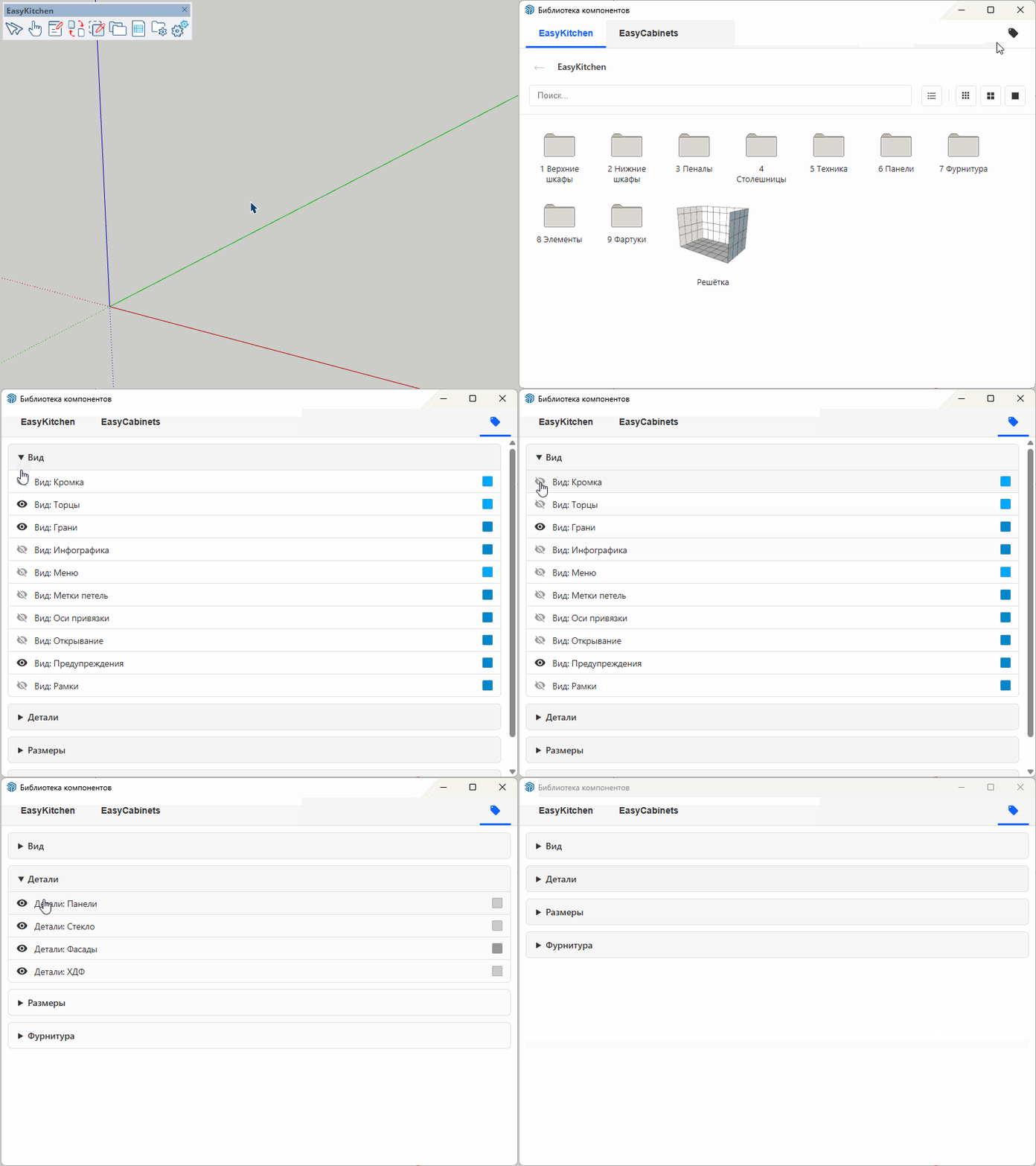
The rightmost tab, marked with a Tags icon, displays all tags currently available in the project. Tags are organized into logical groups.
For example:
- View — controls the visibility and display modes of modules and components.
- Parts — allows you to show or hide specific types of parts, such as panels, doors, glass, and more.
Additional tag groups may also be available depending on the project.
Groups can be expanded or collapsed. The Component Library remembers the expanded/collapsed state of each group until the window is closed.
Each tag has an eye icon next to it. Clicking the eye toggles the visibility of that tag, showing or hiding every object assigned to it in the SketchUp model.
Working with the Library
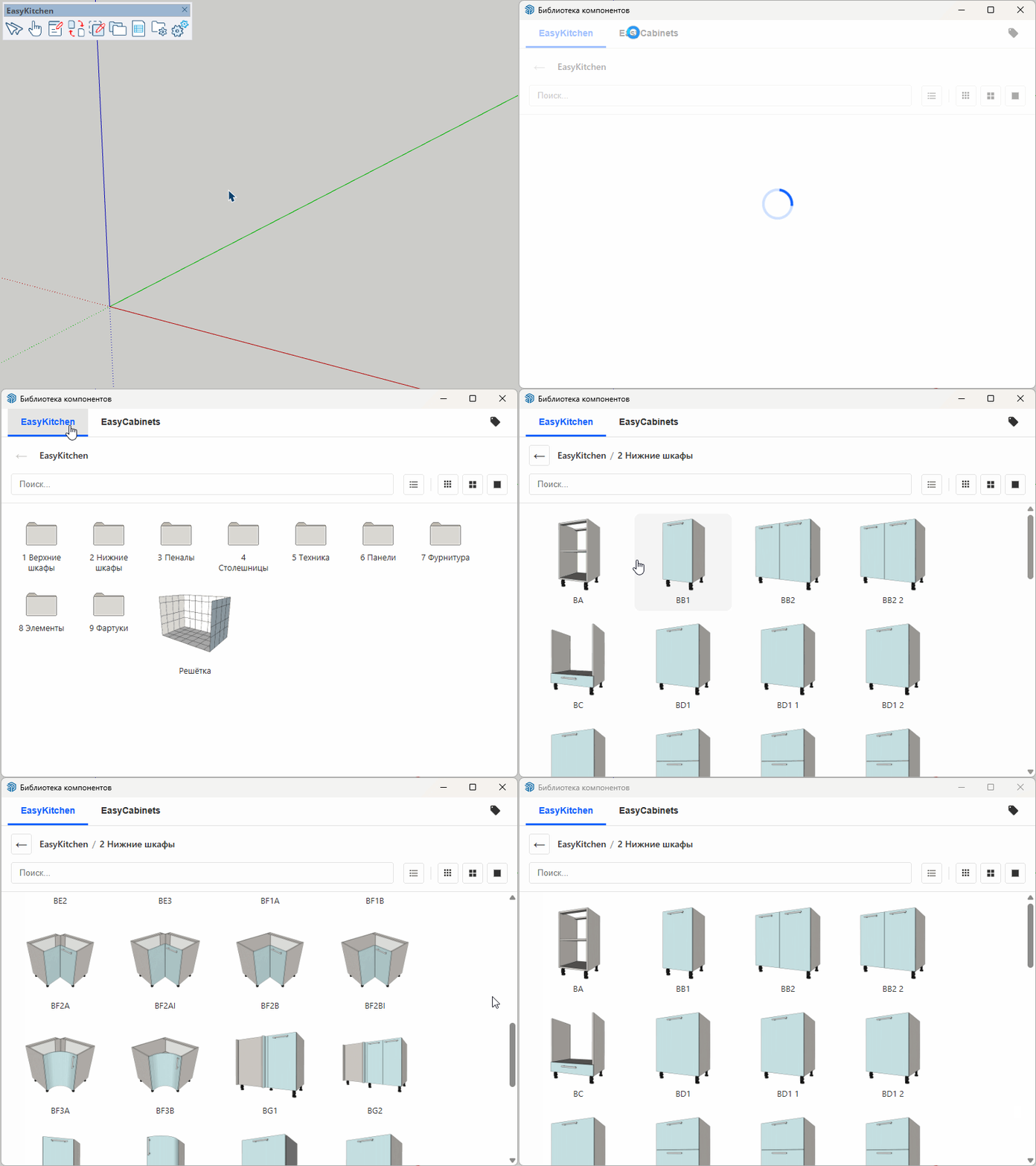
Each library consists of folders containing component files. For example, if you need a wall cabinet, open the EasyKitchen tab and navigate to the Wall Cabinets folder. There you'll find a wide selection of ready-to-use cabinet modules.
Placing a component into your model requires only two clicks:
- Click the desired component in the library.
- Move the cursor into the SketchUp model and click again where you want to place it.
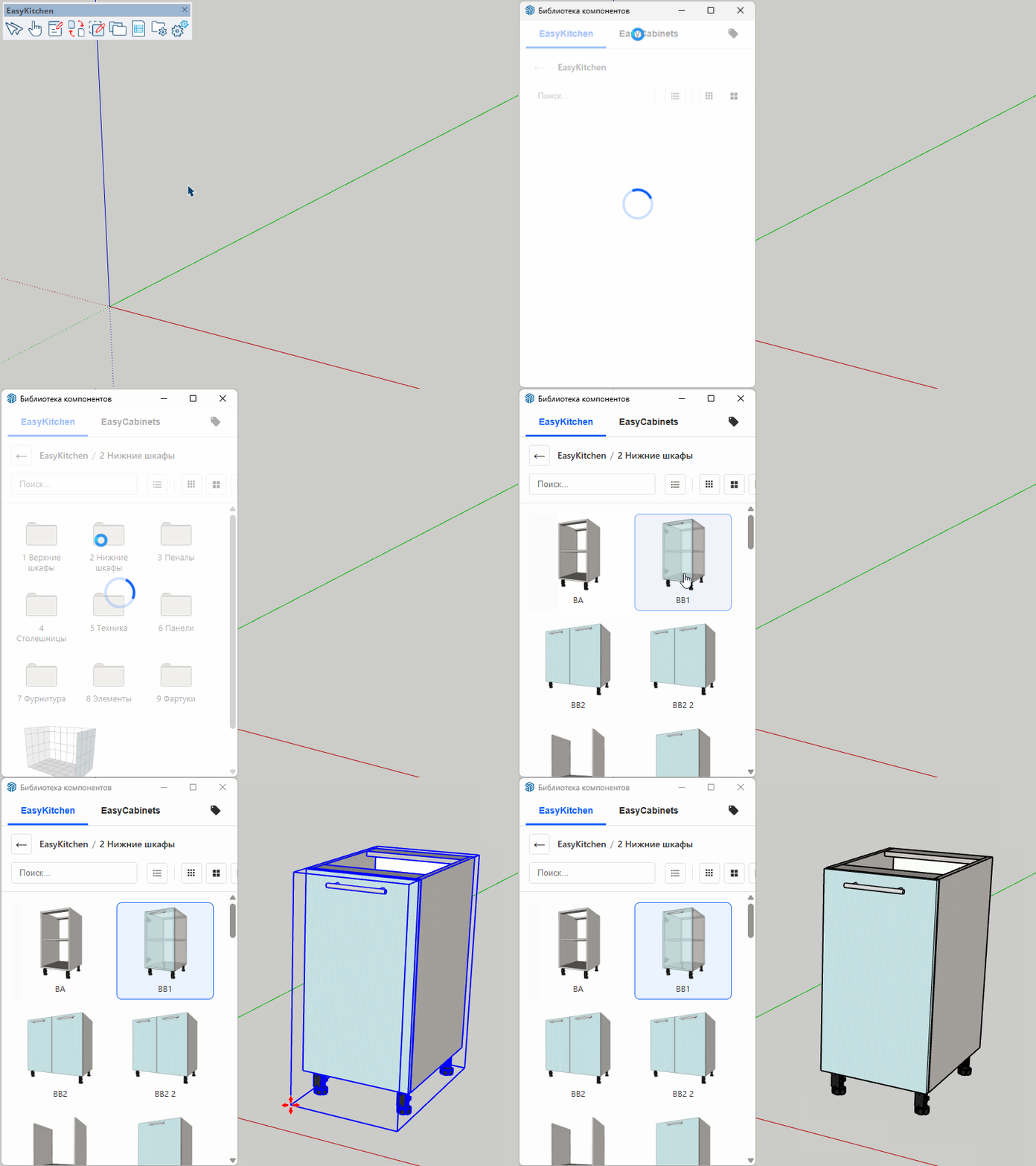
If the internal structure of a module is hidden by its doors, simply hover over its preview in the library. The preview automatically becomes transparent, allowing you to see the module's internal construction.
Smart Search
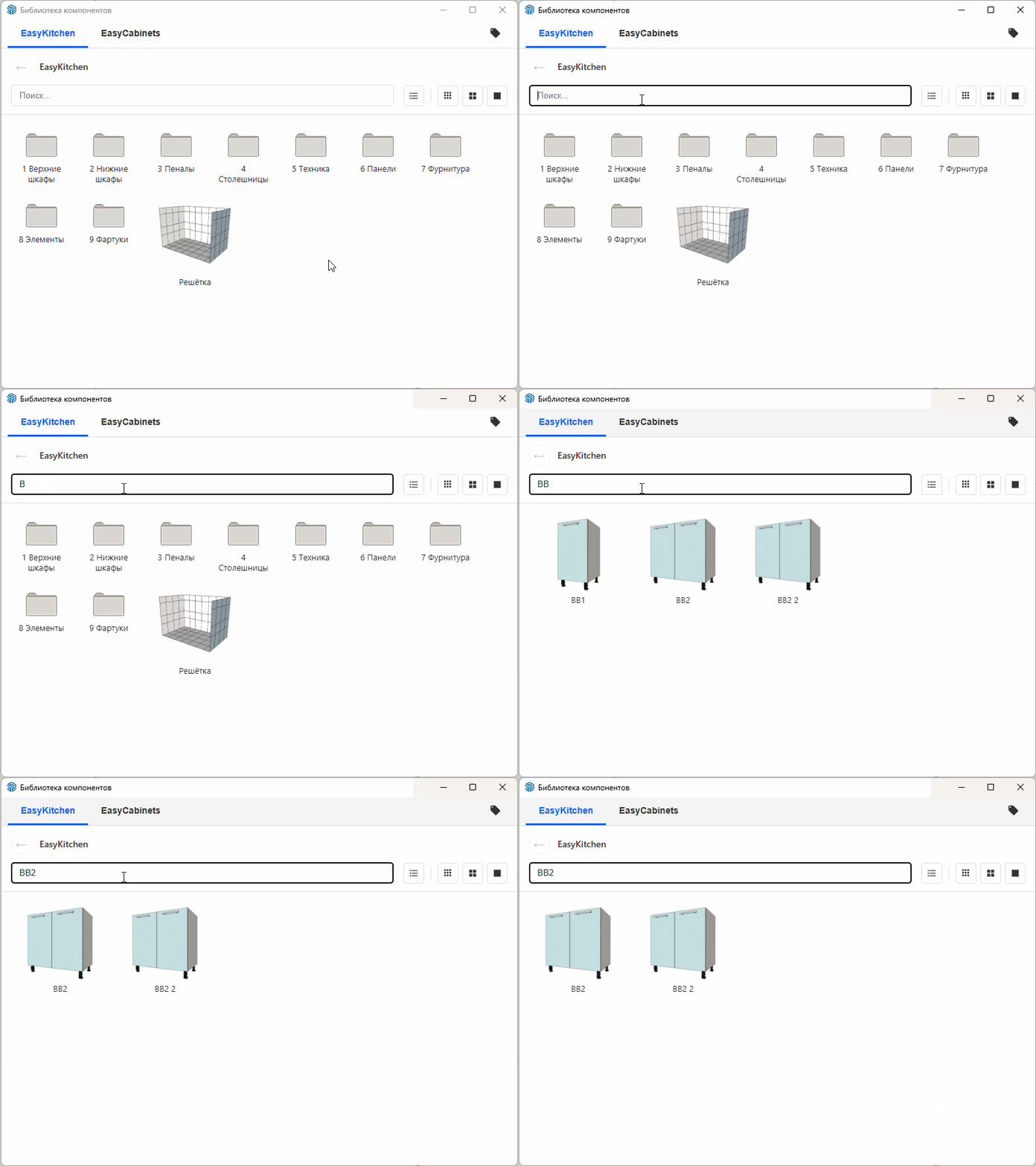
The search field at the top of the window searches through every folder in the currently selected library. Search results are ranked by relevance, with the best matches appearing first. In most cases, you don't need to type the complete component name. Entering just a few characters is usually enough for the search to quickly locate the component you're looking for.