


Article Contents
General Information
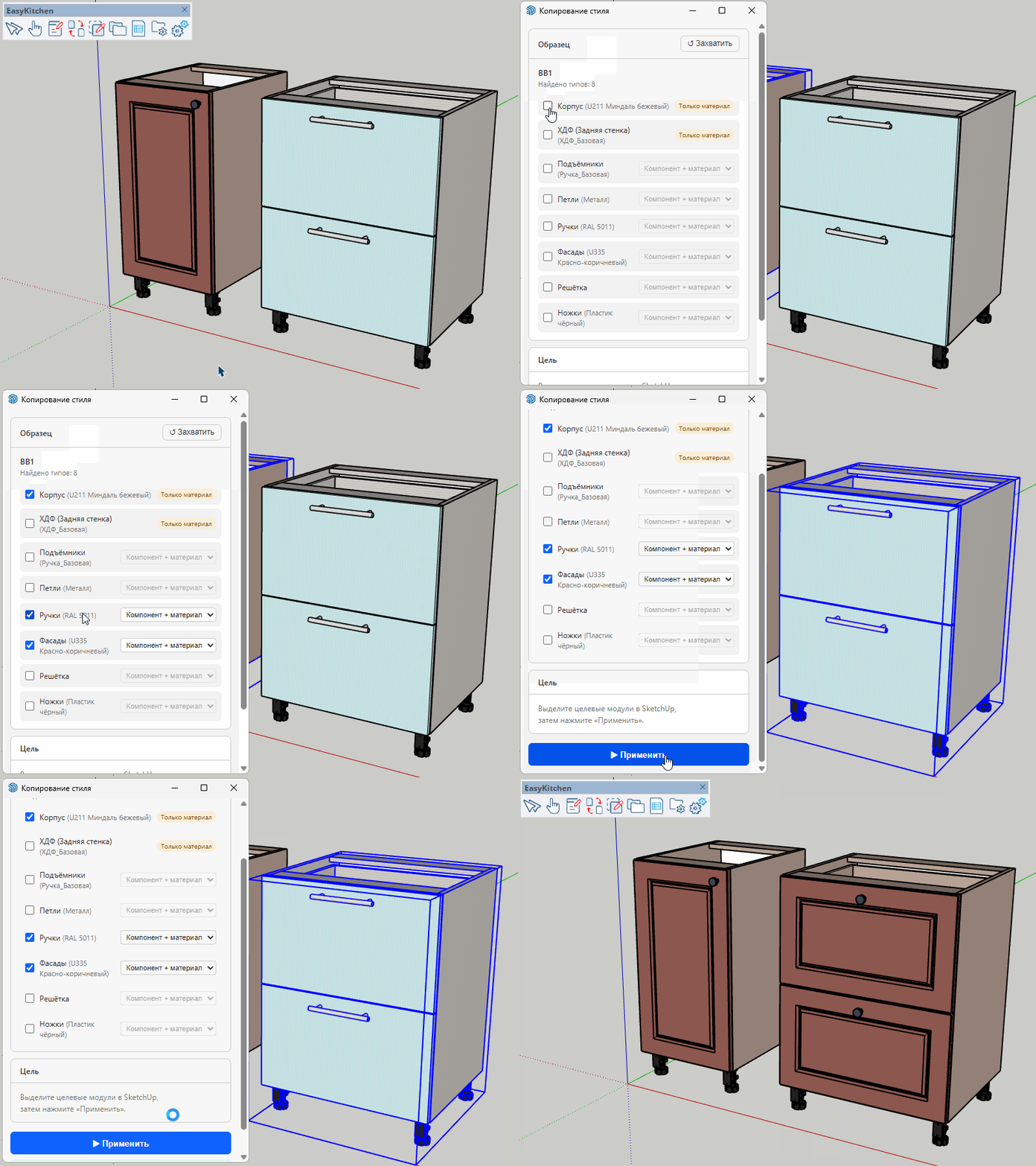
The Copy Style tool allows you to copy the current style of one module — including doors, handles, materials, drawers, and other configurable elements — and apply it to other modules. This saves you from having to manually replace components and materials every time you add or replace a module in your project.

For example, imagine your kitchen design is complete: you've replaced the default doors with a routed style, assigned custom materials, changed the handles, upgraded the default Tandem drawers to Merivobox, and then your client asks you to replace one cabinet with a different model.
Instead of configuring the new module from scratch, simply use Copy Style to transfer the existing design in just a few clicks.
How It Works
- Select the module you want to copy the style from.
- Launch the Copy Style tool.
- A dialog appears showing everything that can be copied from the selected module.
- Check the items you want to transfer, such as:
Cabinet
Doors
Handles
Drawers
- For each selected item, you can choose whether to copy:
The component itself
Only its material
- Finally, select the destination modules and click Apply.
The selected style settings will immediately be transferred to all selected modules.
Known Limitations
Due to limitations in SketchUp, some modules may occasionally change size after the style has been copied. If this happens, simply open the Parameters Window and restore the correct dimensions.