


Article Contents
General Information
The Parameters Window is one of the core tools in EasyKitchen. It allows you to view and edit the parameters of library modules and components.

How It Works
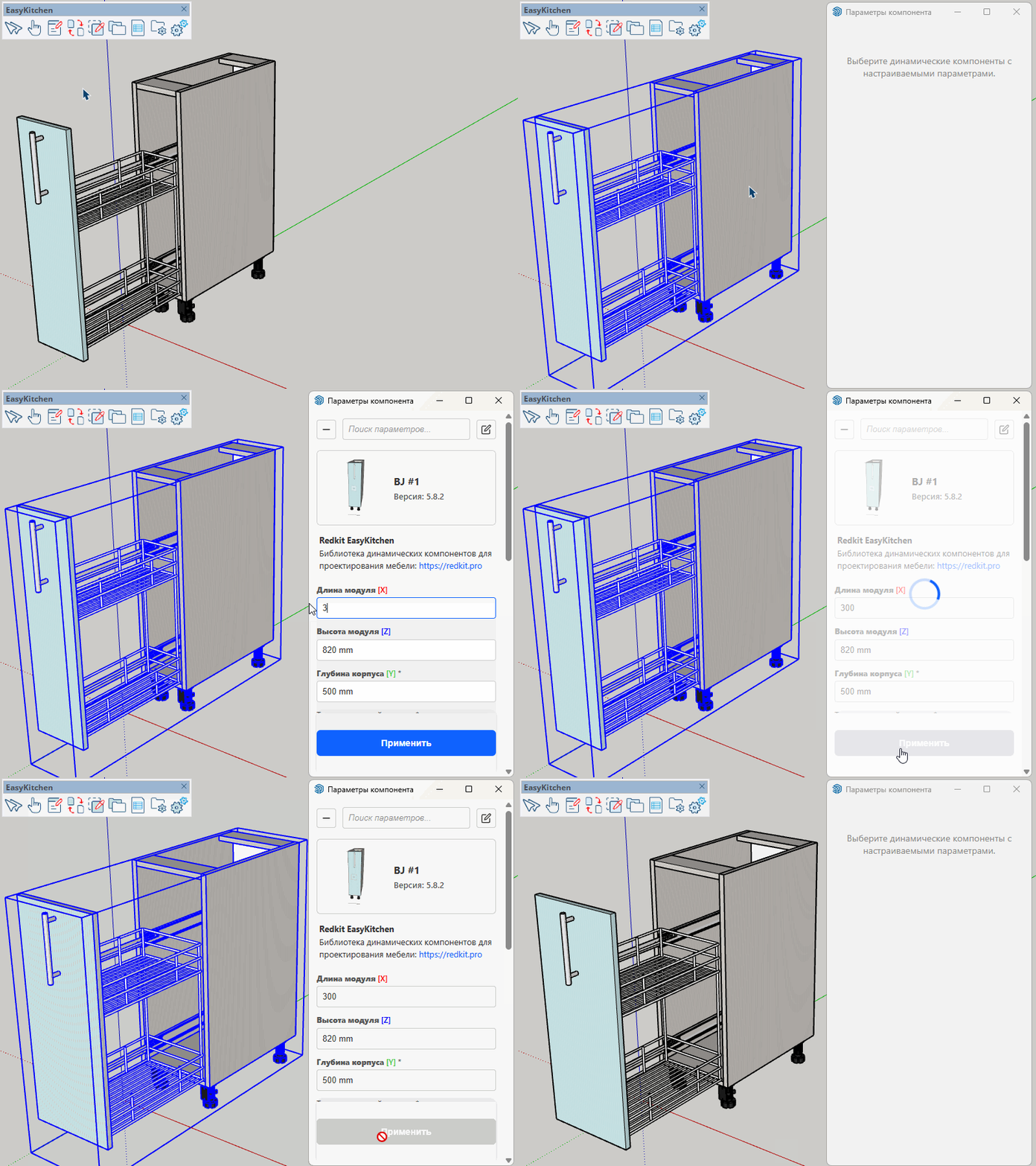
Select the component you want to configure and launch the Parameters Window.
The window displays all parameters available for the selected component. Most of them can be edited.
For example, to change the dimensions of a cabinet module, simply enter the desired values into the corresponding fields.
Press Enter or click Apply at the bottom of the window. The new values are applied to the selected component immediately.
Working with Multiple Components
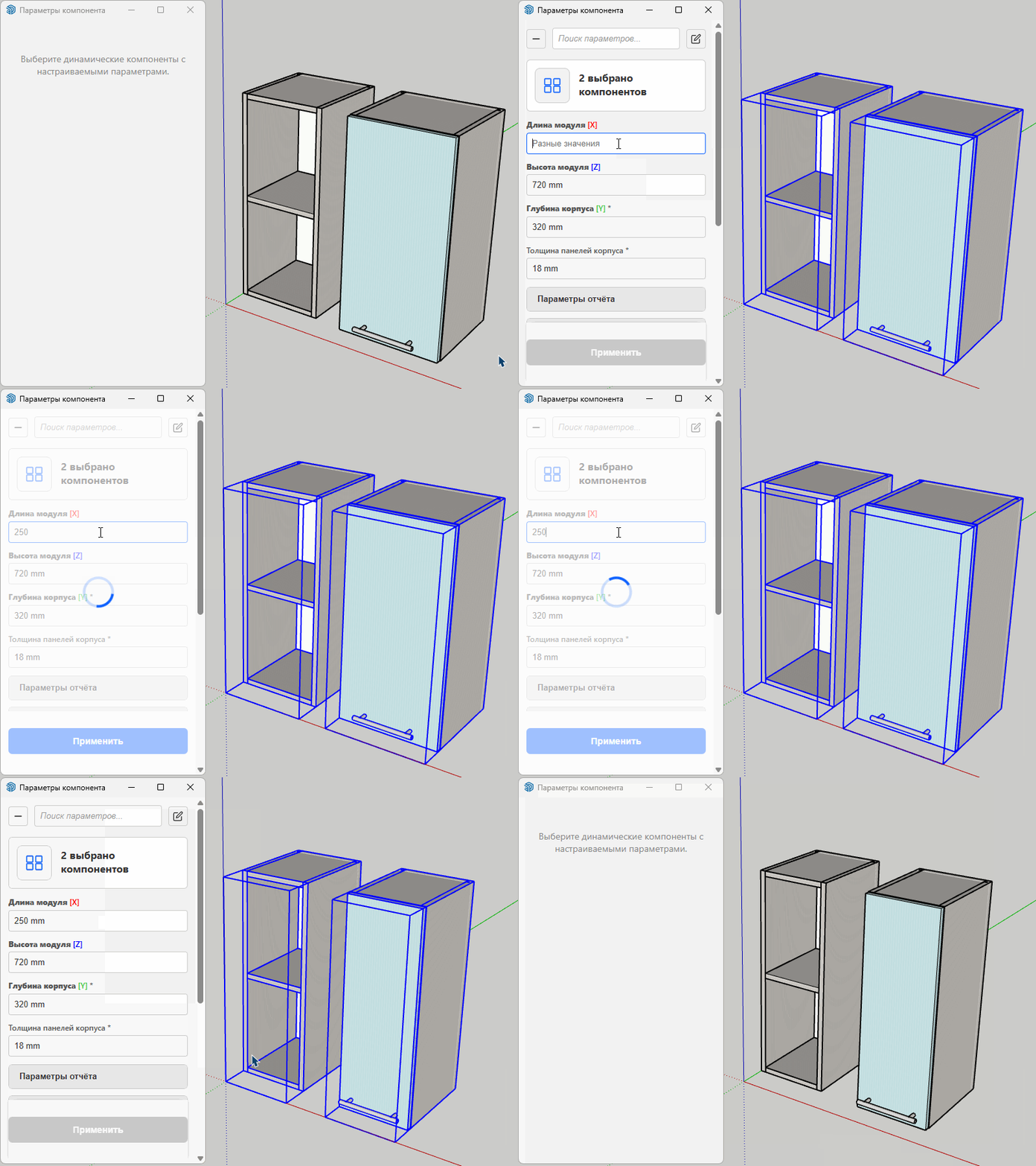
The Parameters Window supports editing multiple selected components at the same time.
When several components are selected, only the parameters common to all selected components are displayed.
Parameters that exist only in some of the selected components are automatically hidden.
If the selected components contain different values for the same parameter, the field displays Multiple Values.
Entering a new value replaces the existing values for all selected components simultaneously.
Parameter Groups
Most parameters are organized into logical groups. For example, door-related settings are located in the Door Parameters group, while edge banding settings are located in the Edge Banding group.
Groups are collapsed by default to make navigation easier. Click a group title to expand or collapse it.
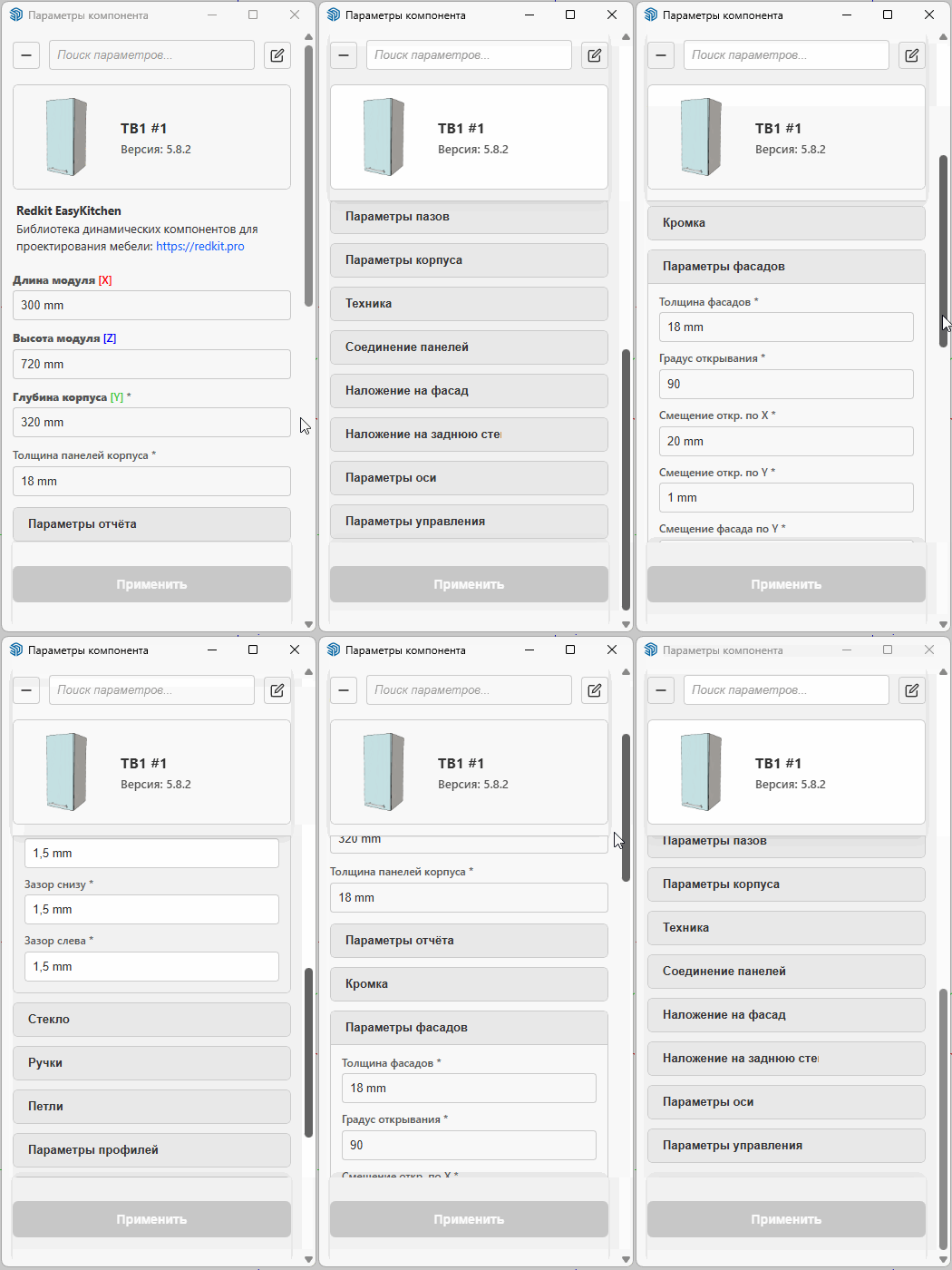
The Parameters Window remembers the expanded and collapsed state of each group, even when switching between different components. This makes it much easier to continue working without repeatedly opening the same groups.
If many groups are open and the parameter list becomes difficult to navigate, click Collapse All in the upper-left corner of the window.
Parameter Types
Parameters can be either editable or informational.
- Editable parameters can be modified. Depending on the parameter, they appear as either text fields or drop-down lists.
- Informational parameters are read-only and display useful information, such as the material currently assigned to the component.
- Some parameter names are marked with an asterisk (*). This indicates that the parameter may contain a formula. The formula may reference another parameter—for example, reading the panel thickness from the parent component—or perform a calculation, such as determining the hinge offset when a door is opened.
You can overwrite these values manually, but keep in mind that doing so permanently replaces the formula with your own value.
Parameter Search
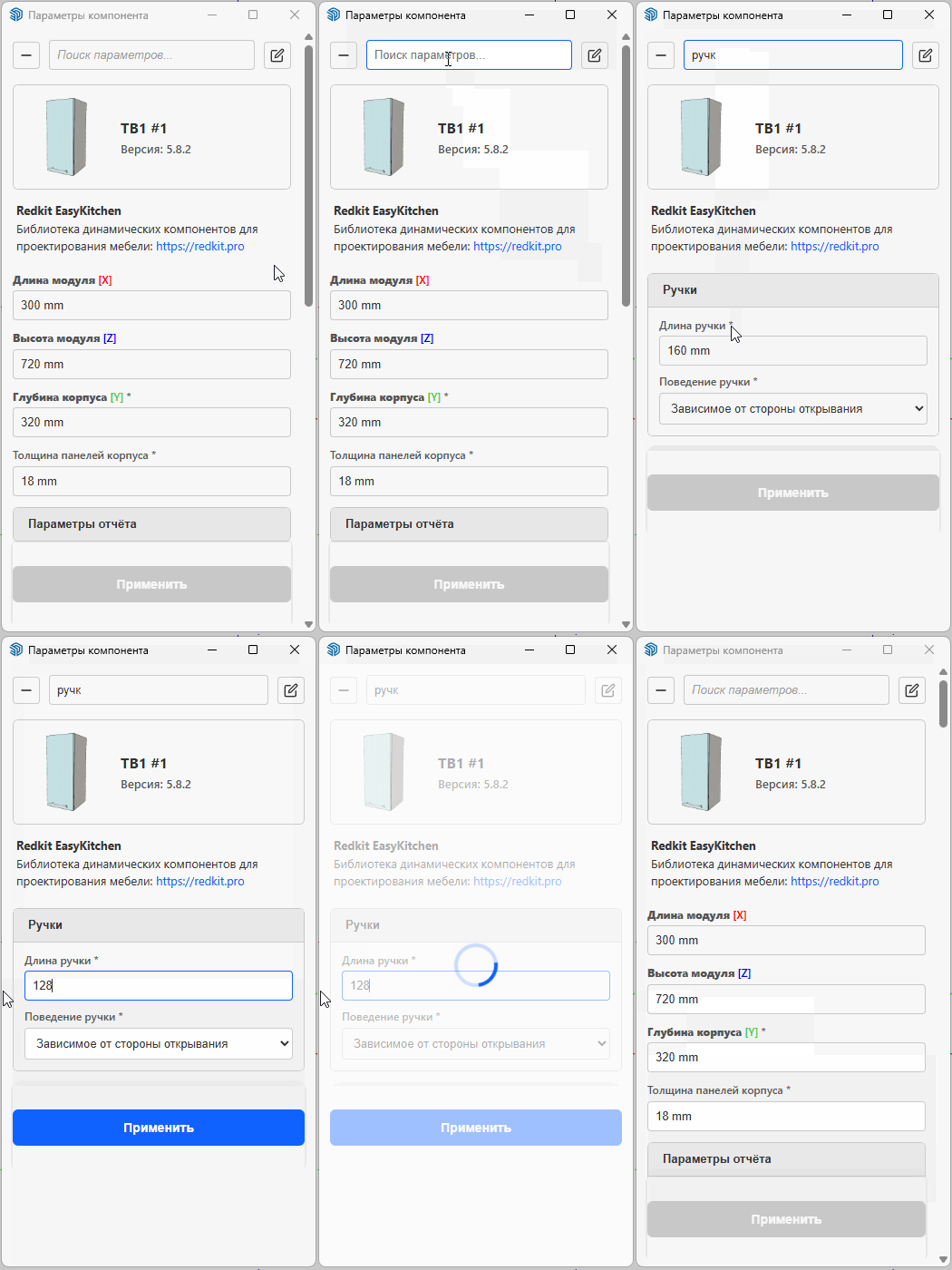
A search field is located at the top of the Parameters Window. This is especially useful for complex modules containing dozens of parameters.
Simply type part of a parameter name. The window instantly filters the list to display only matching parameters while temporarily hiding all unrelated groups and parameters.
Edit Mode
The Parameters Window is fully customizable.
Click the Edit Mode button in the upper-right corner of the window to customize how parameters are displayed.
In Edit Mode you can:
- Rename parameter groups.
- Rename individual parameters (including the use of HTML tags).
- Hide parameters from the list.
- Reorder parameter groups and individual parameters using drag and drop.
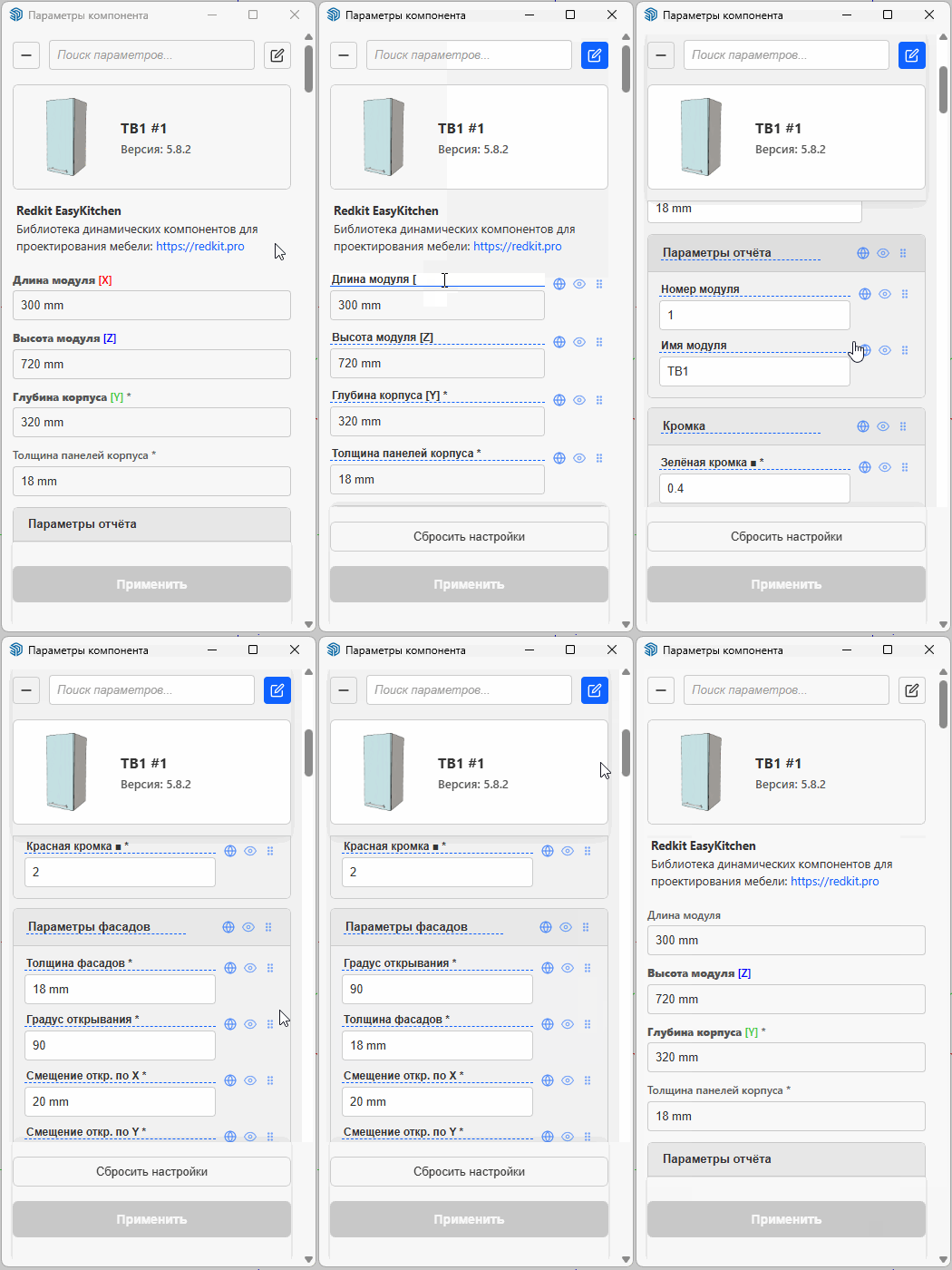
Changes can be applied either:
- Locally, affecting only the current component.
- Globally, affecting every component that contains the same parameter.
The globe button next to each parameter determines whether the change is local or global.
When you finish editing, click the Edit Mode button again to return to the normal view. All changes are applied immediately.
If you ever need to restore the default layout, click Reset Settings at the bottom of the window while Edit Mode is active.
Updating the Thumbnail
You can update the thumbnail displayed at the top of the Parameters Window at any time. Simply move the mouse over the thumbnail and click the update button that appears. The thumbnail image is generated automatically by SketchUp based on the current camera view and the currently visible tags.